

Adding Managers to Your Google Business Profile: User Roles Explained
How to add a manager to your Google Business Profile, owner vs. manager roles, giving an agency access, and what to do when an employee leaves.
By BadePlus
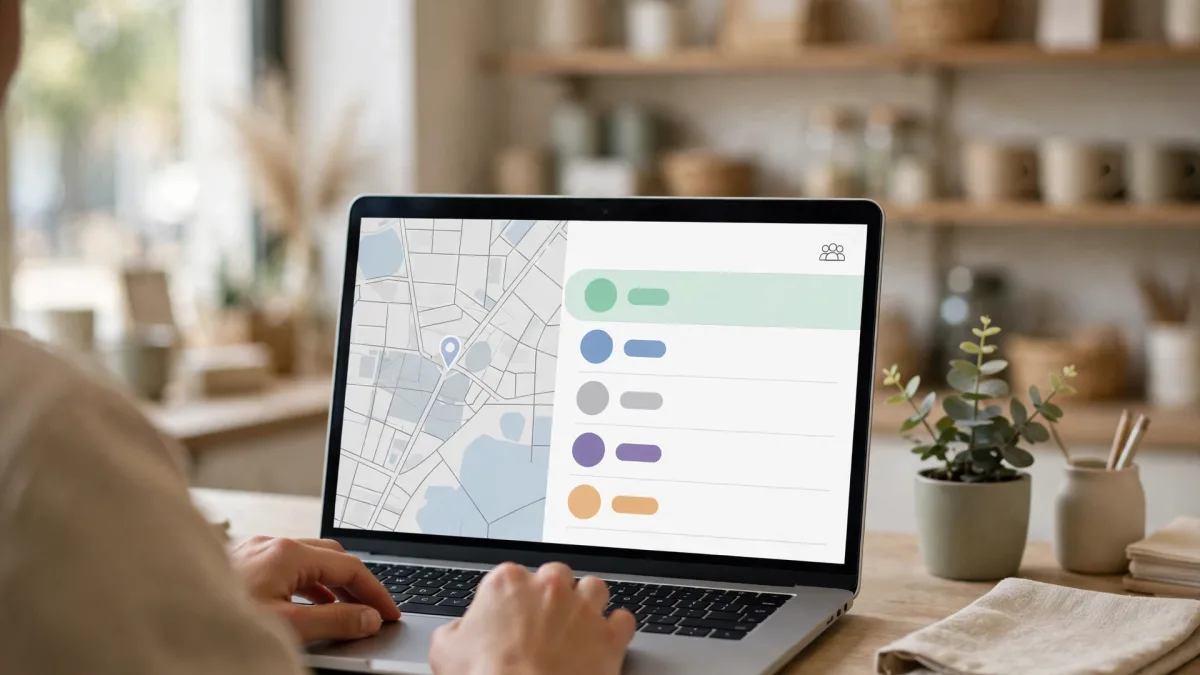
Images are AI-generated.
Managing your profile alone gets harder at some point: an employee replies to reviews, someone else uploads photos, maybe you start working with an agency. The most common mistake at this stage is sharing the Google account password. The right way is to add managers in Google Business Profile and give each person only the access their job needs.
Below we cover Google's user roles, inviting a new user, setting up agency access, what to do when an employee leaves, and transferring primary ownership. Google may rename menus over time; the steps follow Google's help pages.
Owner and manager roles
Google Business Profile defines access at three levels. Before assigning roles, know the difference between owner and manager.
- Primary owner: Each profile has only one. They have all owner permissions and are the only one who can transfer primary ownership.
- Owner: Has full control of the profile. Can add and remove users, change roles, manage profile information and delete the profile.
- Manager: The role formerly called "site manager." Can do almost all day-to-day work, but can't add users, remove users or delete the profile.
One more detail: Google Groups email addresses can't be added as owners or managers. Each user is added with their own Google account.
Which role should go to whom?
The practical rule: don't give anyone more access than their job requires. For an employee who replies to reviews, prepares posts or uploads photos, the manager role is enough. Give the owner role only to people responsible for the business's future, such as your partners. Ideally, primary ownership sits in an account that belongs to the business, not to a single employee.
Adding a manager
Only owners can add new users. The steps to add a user to a Google Business Profile are:
- Go to your Business Profile with your Google account.
- From the "More" menu, open "Business Profile settings," then the "People and access" section.
- Click "Add."
- Enter the email address of the person you want to add.
- Under "Access," choose the "Owner" or "Manager" role.
- Send the invitation with "Invite."
The 7-day period for new users
Google blocks some actions for newly added owners and managers during their first 7 days: they can't delete the profile, remove other owners and managers, or transfer primary ownership. This makes it harder for a compromised account to do lasting damage. For you: if you're planning a handover, add the new person well ahead, not on the last day.

Access when working with an agency
With an agency or freelance specialist, the rule is the same: no shared passwords; access comes through roles.
- Give the agency the manager role. It's enough for review replies, posts, photos and information updates. If the agency doesn't need to add and remove users, don't make it an owner.
- Keep primary ownership yourself. Even if the agency created the profile for you, ask for primary ownership to move to your business.
- Keep a record of who has access. Keep a simple list of which email address holds which role and why it was added.
- Remove access when the work ends. When the engagement ends, remove the agency's account from the "People and access" screen.

When an employee leaves
When an employee with profile access leaves, it's safest to sort out access the same day:
- On the "People and access" screen, select the person and use the "Remove user" option. Only owners can remove users; if you can't select anyone in the list, your role may be manager.
- If the departing person is the primary owner, they must first transfer primary ownership to another user. A primary owner can't remove their own access without transferring it.
- Review the profile information: are the phone number, website, hours and description correct?
- Make sure you have access with your own account; if needed, add a new manager in their place.
If you have no access left
If only the departing employee managed the profile and you can't reach them, you need to request the profile through Google. Google then forwards a request to the current owner and gives them time to respond; details are on Google's Request ownership of a Business Profile page. The outcome depends on Google's review, and no exact time can be given. After you gain ownership, verification may be required; for the methods, see our article on Google Business Profile verification.
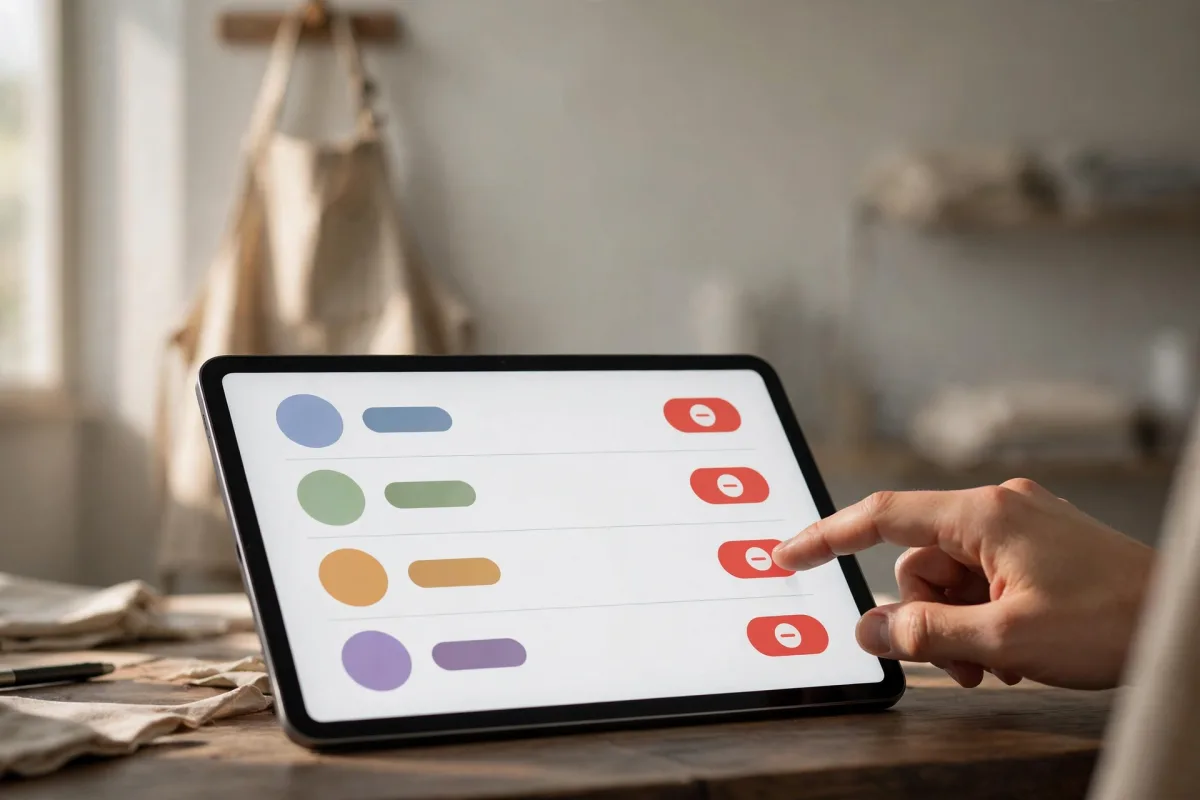
Transferring primary ownership
You need to transfer primary ownership when you hand over the business, when the partnership changes, or to move the profile from a personal account to a company account.
First check the conditions:
- Only the current primary owner can make the transfer; other owners can't make themselves primary owner.
- The person taking over must already be an owner or manager on the profile. If you're the only user, add them first.
- Google notes that primary ownership actions may fail within the first 7 days for newly added users, so leave time between adding and transferring.
- Go to your Business Profile; follow "More," "Business Profile settings" and "People and access."
- Select the user who will receive primary ownership.
- Click the edit icon next to the "Access" row.
- Select "Primary owner" and save.
When the business changes hands
If you're handing over the business, consider transferring ownership instead of deleting the profile: the profile carries the business's reviews and photos, and a transfer preserves that history. Google may want to separately verify that the new owner actually runs the business. If there's no profile or one must be created from scratch, follow our guide to adding your business to Google Maps.
Frequently asked questions
Can a manager reply to reviews?
Yes. The manager role covers all day-to-day work such as replying to reviews, publishing posts and adding photos. Adding and removing users and deleting the profile belong to owners.
I sent an invitation but the person can't see the profile. Why?
They may not have accepted the invitation yet, or may be trying to open it with a different Google account. Make sure they're signed in with the email address the invitation went to; if needed, cancel the pending invitation and send it again.
The agency created the profile in its own account. What should I do?
Ask the agency to first add you as an owner, then transfer primary ownership to you. With the 7-day period in mind, settle this at the start of the engagement.
Summary
- Don't share passwords; give each person a role from the "People and access" screen.
- The manager role is enough for day-to-day work; keep the owner role and primary ownership only in trusted accounts tied to the business.
- New users can't delete the profile, remove users or transfer primary ownership in their first 7 days; plan handovers ahead.
- When an employee or agency leaves, remove their access the same day and review the profile information.
- If you have no access left, ownership is requested through Google; the outcome is Google's decision.