

Google My Business Optimization: Where Are the Old Settings Today?
Google My Business is now managed as Google Business Profile. We explain where settings from old guides are today and what has changed in optimization.
By BadePlus
Images are AI-generated.
Many guides written under the "Google My Business" name still circulate online. Because their screenshots and menu names don't match today's interface, business owners attempting Google My Business optimization often can't find the setting they want. The good news: most settings haven't disappeared; they've just moved and go by a different name.
Here we explain step by step where the service known by its old name is managed today, what old-guide settings correspond to now and what has really changed in optimization. We give menu names as they appear in Google's help pages; Google updates its interface periodically, so you may see small differences on your screen.
From Google My Business to Google Business Profile
Google My Business is the old name of the service you use to manage your business's listing on Google Search and Google Maps. Some time ago Google renamed it Google Business Profile and moved management largely into Search and Maps themselves. So when you search for "Google My Business settings" today, the screen looks different from the separate dashboard in old guides.
What changed is mostly the name and interface; the profile itself stays the same. Your name, address, phone number, category, opening hours, photos and reviews remain on the same listing. For the service's basic concepts, see our article what is Google Business Profile.
Note: some tools described in old guides are no longer offered. For example, messaging through the profile and the simple website Google provided have been removed. If a guide covers these tools, skip those sections.
Where do you manage the profile now?
Today you can manage your profile in three ways:
- Through Google Search: Sign in with the Google Account linked to your profile and go to business.google.com; your profile opens with its management buttons.
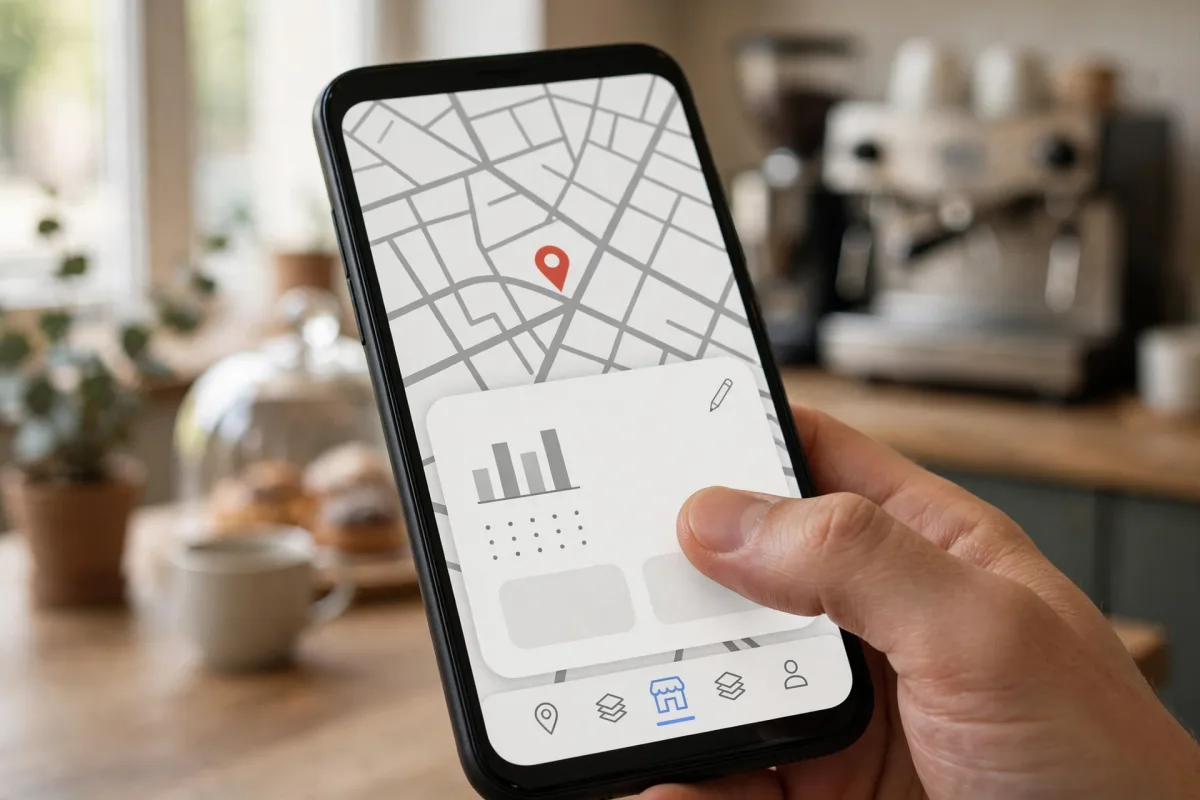
- From the Google Maps app: The Business tab in the Maps app has replaced the old separate management app.
- With Business Profile Manager: Google also offers this tool so businesses with many locations can manage profiles in bulk.
Editing from Search and Maps
Google's edit your Business Profile page describes two ways.
On a computer, from Google Search
- Go to your Business Profile at business.google.com.
- Select Edit profile.
- After making your changes, select Save.
On a phone, from the Google Maps app
- Open the Google Maps app.
- At the bottom right, tap the Business tab.
- Tap Edit profile.
- After making your changes, tap Save.
The new interface also has a detail old guides never mention: to verify your information, Google may automatically call, text or send a WhatsApp message to your profile's phone number and use your answers to update the profile. You can see the information collected this way in the collected information section under Edit profile and delete anything that's wrong.
What the settings in old guides correspond to today
Most actions from the old dashboard's separate tabs are now on the Edit profile screen or in buttons on the profile. Where the most searched-for settings are today:
- Business information (name, address, phone, hours, description): All on the Edit profile screen, grouped under topic headings.
- Category: Opened with the edit icon next to the "Business category" row on the Edit profile screen. You choose the main category in the Primary category box and additional ones with Add another category.
- Posts: Created with the Add update option. Types are Update, Offer and Event, and a post can be scheduled for a later date with the scheduling option.
- Reviews: Listed in the Read reviews section of the profile. The review link you share with customers is also here, in the share icon next to Get more reviews.
- Users: Follow the More icon, then Business Profile settings and People and access. Here you can add owners or managers; the manager role was previously known as "site manager".
- Booking and appointment links: Added through Bookings on Google Search, and through Edit profile then Add link on Maps.
- Insights: The reports known as insights in the old dashboard are now in your profile's performance section; that's where you track how often your profile was viewed and what interactions it got.
- Removing the profile: Under the More icon, Business Profile settings and Remove Business Profile. Since this permanently deletes the content you added, use it only if really necessary.
Have the optimization steps changed?
Short answer: the interface changed, the basic principles didn't. Google says it still ranks local results on the same three main factors: how well the profile matches the search (relevance), how far the business is from the searcher (distance) and how well known the business is (prominence). Google's tips to improve your local ranking page also clearly states that you can't pay for or request a better local ranking.
So the basic recommendations in old guides still apply:
- Keep information complete and accurate: Your address, phone number, website, category and attributes should be complete.
- Choose the primary category that best describes your business: Use additional categories only for services you actually offer.
- Keep opening hours current: Enter special hours for holidays and special days.
- Add real photos: Current photos of your entrance, interior, products and services make your profile easier to understand.
- Reply to reviews: Google says replying to reviews shows you value customer feedback.
If you need to monitor several profiles regularly, bringing these tasks into one dashboard saves time. BadePlus finds gaps in your connected profiles through Google's official interface (API); we explain how this works on the AI-assisted map optimization page.
Frequently asked questions
Has Google My Business shut down?
No. The service continues as Google Business Profile. Your existing profile, reviews and photos remain on the same listing; you don't need to create a new profile.
I can't find a setting from an old guide. What should I do?
First check the sections on the Edit profile screen. If it's not there either, the setting may have been removed or may not be offered for your category. Some category-specific features, such as the booking button, appear only for certain types of business.
Why don't my changes appear right away?
Google reviews edits before publishing them. How long that takes is Google's decision; wait for the review to finish instead of changing the same information repeatedly.
Summary
- Google My Business is now called Google Business Profile; your profile information remains on the same listing.
- Today the profile is managed through Google Search, the Business tab in the Google Maps app and, for multi-location businesses, Business Profile Manager.
- Most settings from the old tabs are on the Edit profile screen, posts are under Add update and users are in the People and access section.
- The foundation of optimization hasn't changed: complete information, the right category, current hours, real photos and replies to reviews.
- Make changes step by step; the decision to publish them and how long it takes are up to Google.