

How to Create a Google Review Link and Where to Share It
How to create your Google review link and QR code, and share them on table cards, in messages and on your website in line with Google's rules.
By BadePlus
Images are AI-generated.
To leave you a review, a customer has to search for your business on Google, find the right listing and reach the review area. Any of these steps can make a willing customer give up. A Google review link shortens the path: tapping the link or scanning the QR code goes straight to your profile's review screen.
Here we explain how to create the link with Google's own tool, put the QR code on a table or counter card, share it in messages and on your website, and which rules to follow.
Finding the review link
You don't need third-party sites for the review link; Google provides the link and its QR code inside Business Profile itself. To create it, you must be signed in as the profile's owner or manager. The steps on Google's help page:
- In a computer browser, go to your Business Profile at business.google.com with the Google Account linked to the profile.
- In the Read reviews section, select the share icon next to Get more reviews.
- Select the copy icon to copy the link.
- To download the QR code, right-click it and choose Save image as.
After creating your Google review link, do two quick checks:
- Test the link: Open it on your phone, ideally in a browser not signed in to your business account, and confirm it reaches the right profile's review screen.
- Use one main link: Save the link and use the same one on every channel. Different links copied from different places cause confusion over time.

Table and counter cards with a QR code
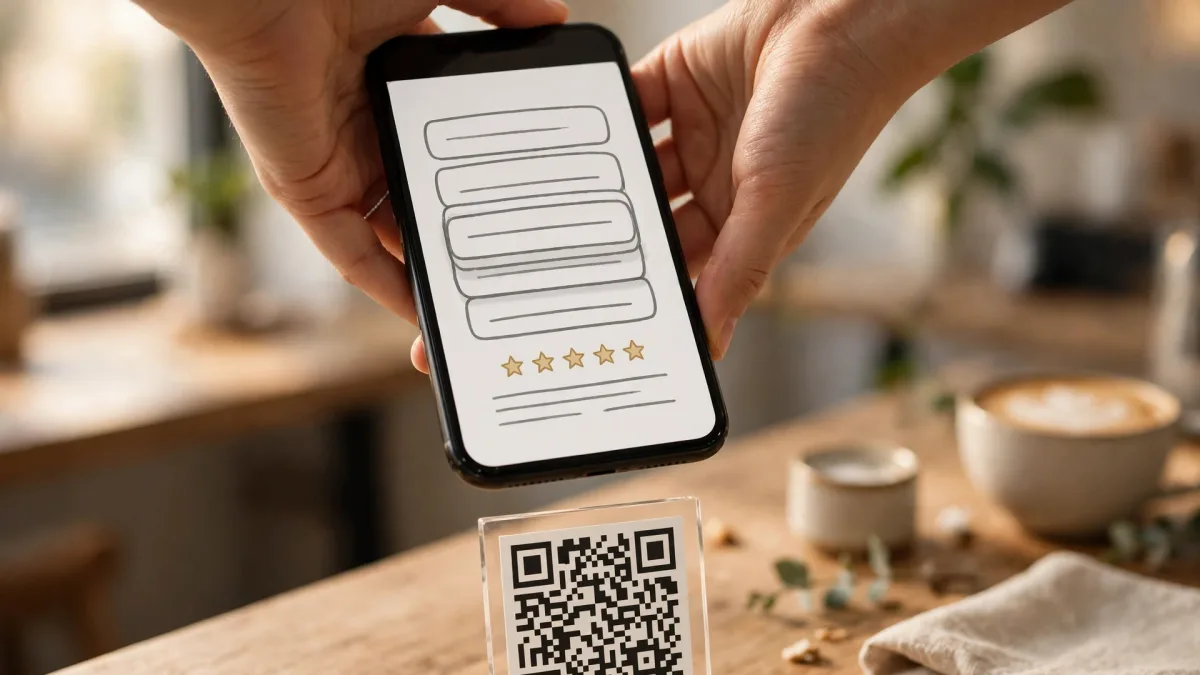
The Google review QR code is the easiest option for businesses serving customers in person: customers scan it with their phone camera and land on the review screen. When preparing the card:
- Readable size: Print the code large enough for phone cameras to read easily. Before printing, test the card on a table or counter with several phones from where customers will stand.
- Simple design: Leave plenty of space around the code and print it dark on a light background. Glossy surfaces reflect light and can hinder scanning; matte paper or a matte finish is safer.
- Short, neutral text: One sentence is enough. For example: "If you'd like to share your experience on Google, you can scan this code."
- The right place: The checkout, tables, the waiting area and delivered packages, where customers already wait a few seconds, are the most natural spots.
Sharing in messages and email
The end of the service is the most natural time to ask for a review. Add the link to the thank-you message or email you send after an appointment or order. Google also suggests sharing it in thank-you emails, on receipts and at the end of a conversation.
Send everyone the same text, without steering them. An example:
"Hello, thank you for choosing us today. If you'd like to share your experience on Google, you can use the link below."
When sending messages:
- Personal and one-time: Don't send the same person repeated reminders. Asking once is enough.
- Consent for bulk sending: Bulk SMS or email to many people may count as a commercial message, which requires the recipient's prior consent. Don't send bulk messages to people without consent.
- Don't hide the link behind URL shorteners: Using Google's link as is lets customers see where it goes and builds trust.
On your website and receipts
Beyond in-person moments, show the link wherever customers encounter you:
- Website: Put a simple link such as "Review us on Google" on your contact page, the thank-you page after an order or appointment, and the page footer.
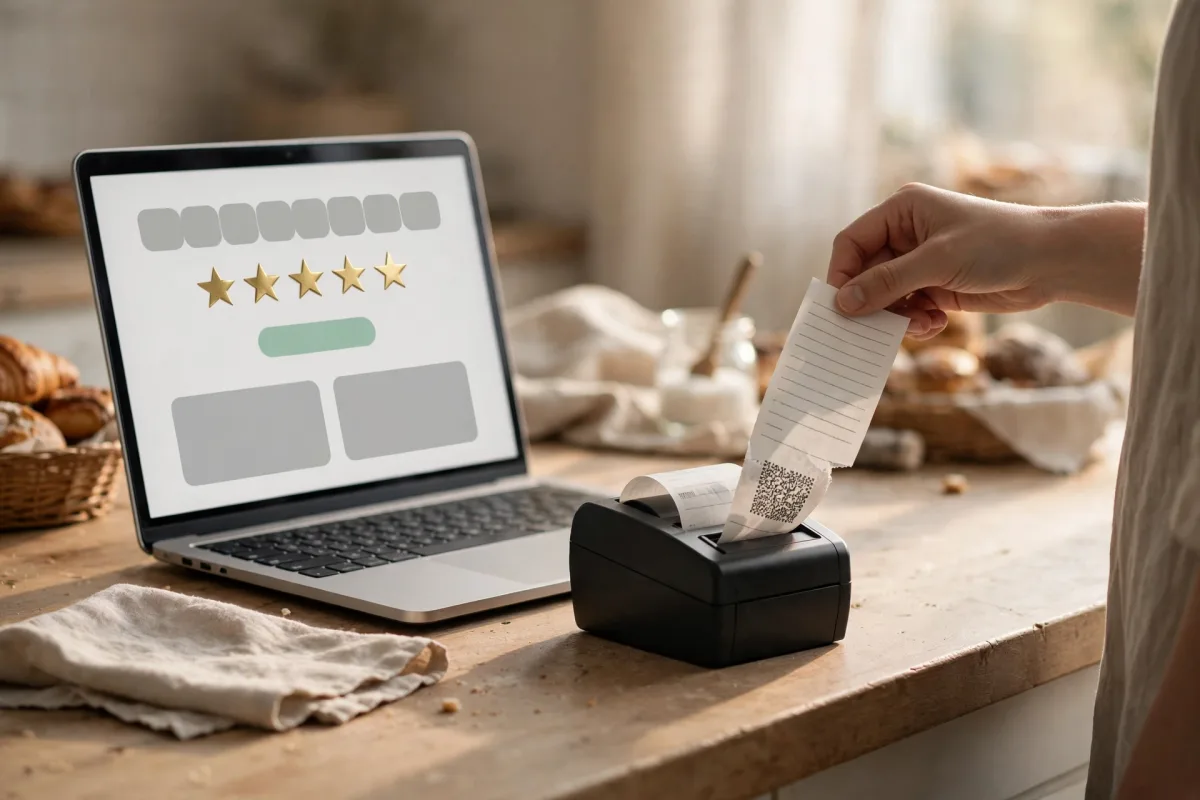
- Receipts and invoices: If your point-of-sale system allows, print the QR code at the bottom of receipts. Google also lists receipts as a place to share the link.
- Business cards, package labels and brochures: A small QR code helps on any printed material reaching customers' homes or workplaces.
- Social media profiles: Add the link to your bio or a pinned post.
Rules to follow when sharing
Sharing the link is fine; how you share it is subject to Google's rules. Google's tips to get more reviews page clearly states:
- No incentives: Offering a discount or a free product or service to get reviews counts as fake engagement and is prohibited. This also covers incentives to change a review or remove a negative one.
- Real experience: Reviews must reflect a real experience. Reviews by your employees or relatives, or written on your behalf, break this rule.
- Google Account required: Customers must be signed in to a Google Account to write a review. A customer who opens the link but can't write a review most likely isn't signed in.
- Don't ask selectively: Sending the link only to customers you expect to be positive distorts your profile's true picture and conflicts with Google's policies. Offer it to all customers the same way.
- Don't steer: Don't ask for a specific rating or specific words; let customers describe their experience in their own words.
Replying regularly to incoming reviews is also part of sharing the link. As reviews grow, this takes time; BadePlus's Google review replies feature prepares AI-assisted reply drafts and publishes them when you approve or, if you've given permission, automatically.
Frequently asked questions
Can I create the review QR code on my phone?
According to Google's help page, no; only in a computer browser. On your phone, copy the link and download the code later on a computer.
Why can't a customer who opens the link write a review?
Usually because they aren't signed in to a Google Account. People who don't use Gmail can also create a Google Account with another email address.
Is it a problem to share the review link publicly?
No. Share it on your website, receipts or social media. What matters is offering it to everyone the same way, without incentives or picking customers.
Summary
- Your Google review link and QR code are under the share icon next to Get more reviews in your Business Profile's Read reviews section.
- The QR code can only be created in a computer browser; test it with different phones before printing.
- Share the link with the same simple text on table cards, in thank-you messages, by email, on your website and on receipts; bulk sending requires commercial message consent.
- Offering a discount to get reviews, picking customers or steering the text breaks Google's rules.
- Replying regularly to incoming reviews matters as much as sharing the link.