

How to Set Special Hours for New Year's and Public Holidays
Setting special hours on your Google Business Profile for New Year's and public holidays keeps customers from a closed door. Steps and long closures explained.
By BadePlus
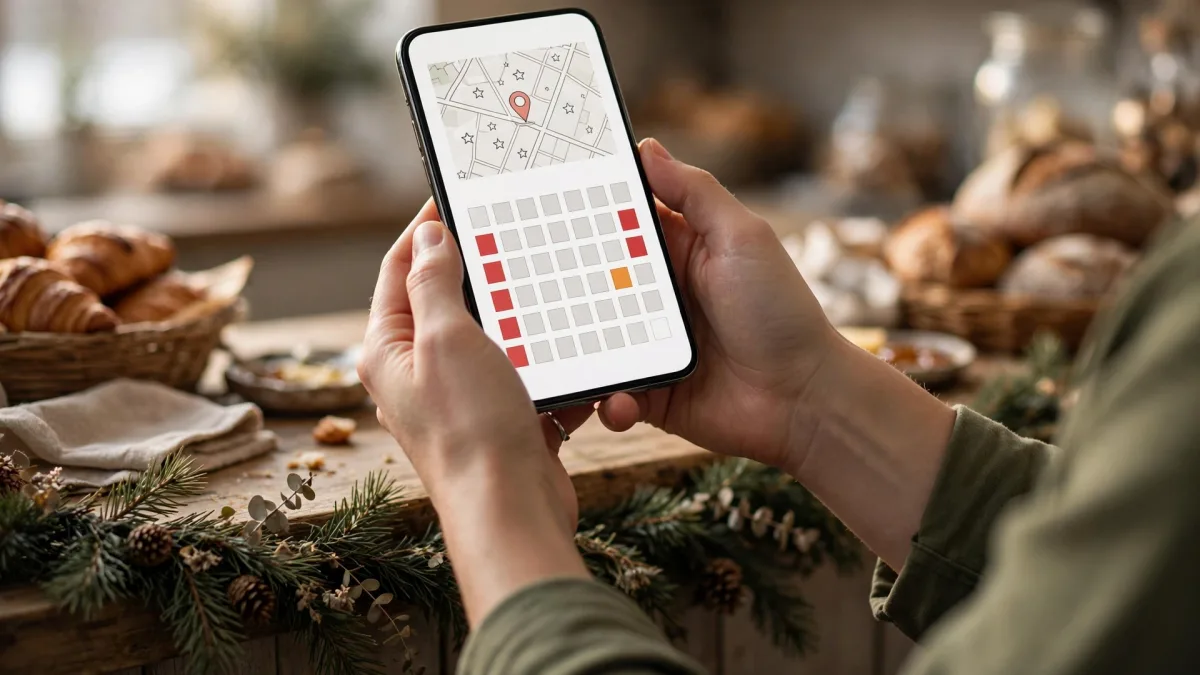
Images are AI-generated.
A customer who arrives on New Year's morning to find your shutters down is both a lost sale and a possible negative review. Often the problem isn't that the business is closed, but that Google shows it as "open." Google's special hours exist for exactly this: they let you set different hours or a closed day for specific dates without changing your regular weekly hours.
Below, step by step: what special hours are, how to enter them ahead of New Year's and public holidays in Turkey, how to set closed days and shortened hours, what to watch in a long closure, and what to check afterward.
What are special hours?
Special hours are for when your hours change briefly. Your regular weekly hours stay as they are; customers see different hours only on the days you choose. Google's help page lists their uses: holidays, special events and other exceptional circumstances (How to set special hours).
Three basic rules:
- Time limit: Use them when your business will keep different hours or stay closed for six consecutive days or fewer.
- Confirming matters too: Google recommends confirming your hours on public holidays even if they match your regular hours. This shows customers your hours for that day are correct.
- Profile status: For special hours to show on your profile, your business hours must be set to "Open with main hours."

Entering New Year's and public holidays in advance
New Year's Day is January 1 every year, while the dates of religious holidays in Turkey change from year to year. Check the dates against the official calendar and enter special hours a few weeks ahead. Edits may go through Google's review, with no exact publishing time; not leaving it to the last day is safest.
The steps Google describes are:
- Go to your Business Profile.
- Select Edit profile, then the Hours section.
- Tap the edit icon next to "Special hours."
- Choose the date. If Google suggests a holiday date, confirm it with Review; for a day that isn't listed, enter the date yourself with Add a date.
- If you are open that day, uncheck "Closed" and enter your opening and closing times; if you are closed, make sure the box is checked.
- Select Save.
If you have multiple locations
Google explains that the bulk upload spreadsheet has a "Special hours" column, where all-day closures are marked with an "x." Be careful: according to Google, columns with a header but no values may delete the existing information in them. If you are only adding special hours, keep only the store code and special hours columns in the spreadsheet.
Closed days and shortened hours
Three situations are common when entering Google business holiday hours:
- Closed all day: Add the date and leave the "Closed" box checked.
- Shortened day: For example, if you will close early in the afternoon on the eve of a religious holiday, move that day's closing time earlier.
- A break during the day: If you have two separate working periods, such as around a lunch break, add a second set of hours to the same date.
Hours that go past midnight
An important detail for cafes, restaurants or entertainment venues that stay open late on New Year's Eve: according to Google, a set of special hours cannot be longer than 24 hours, and hours that go past midnight are split into two sets. For example, if you open at 7:00 PM on December 31 and close at 3:00 AM on January 1, enter:
- 7:00 PM–12:00 AM for December 31,
- 12:00 AM–3:00 AM for January 1.
Once your New Year's hours look right on Google, update the same information on your website and the other channels you use. A customer who sees different hours in different places won't know which to trust.
What to watch for in a long closure
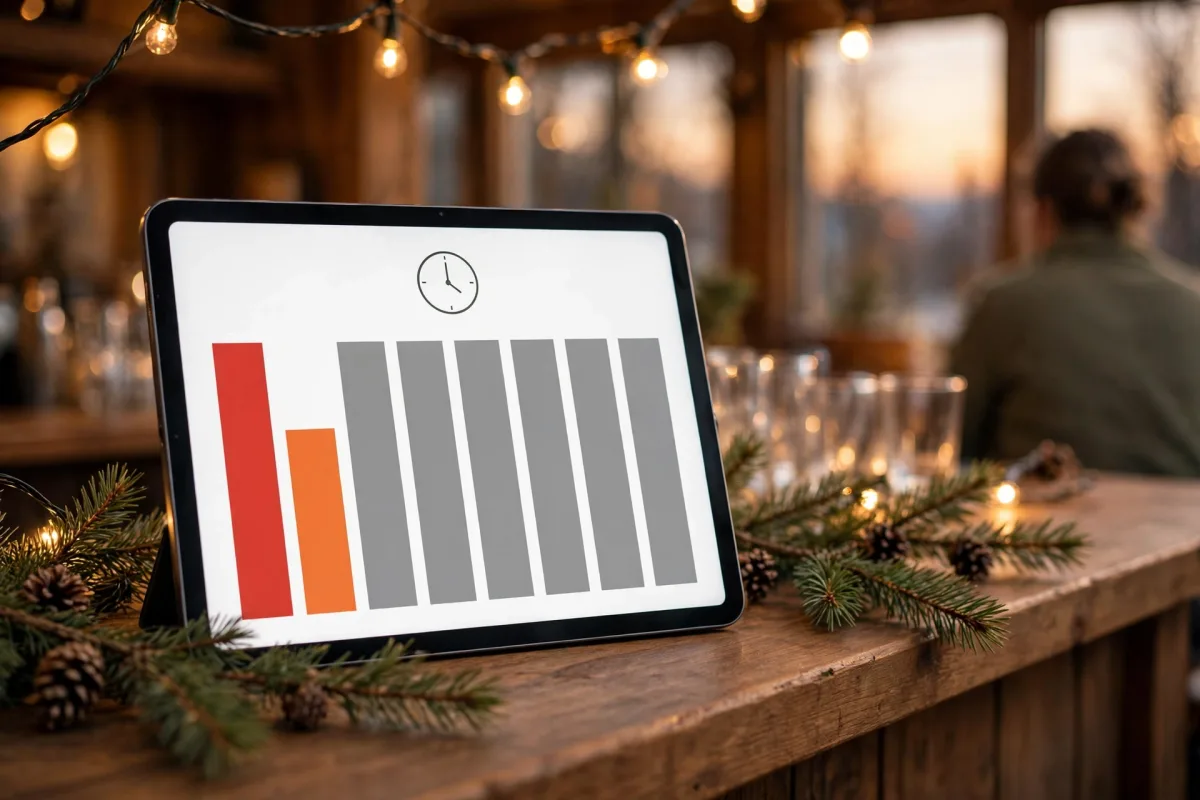
If you will close for a long period, such as a winter break, renovation or the off-season, special hours are not the right tool. Google's rule is clear: if your business will be closed for seven or more consecutive days, or for a period with no set end, you should mark your profile as "Temporarily closed."
In a long closure:
- Choose the right status. "Temporarily closed" and "Permanently closed" are not the same. Permanently closed means the business has shut down for good; it is not used for a business that will reopen.
- Don't try to split it with special hours. Entering a closure of more than seven days as several blocks of special hours is not the method Google describes; it also gives customers a confusing picture.
- Announce your reopening date. During the closure, you can add a post to your profile saying when you will reopen.
- Change the status back when you reopen. On the day you reopen, mark your profile as open and check your hours.
After-holiday check
When the holiday is over, a few minutes of checking keeps the following week running smoothly:
- Check your hours. Make sure your regular weekly hours appear on your profile.
- Check the status. If you used "Temporarily closed," confirm that the label is gone.
- Look at Google's suggestions. Google sometimes changes hours based on user suggestions; if your profile shows a change you didn't make, review it.
- Look at your reviews. If reviews came in during the holiday saying "it was closed," explain the situation with a polite reply.
- Note upcoming holidays. Plan special hours for the next public and religious holidays now.
Frequently asked questions
I entered special hours but they don't show on my profile. Why?
First check that your business hours are set to "Open with main hours." Then see whether the edit is still under review. No exact time can be given for how long the review takes.
I keep my regular hours on public holidays. Should I still enter anything?
Yes. Google recommends confirming your hours on public holidays even if they are the same. That way customers can be sure you are open that day.
What should I do for a ten-day closure?
For closures of seven days or more, mark your profile as "Temporarily closed," and remove the label when you reopen.
Summary
- Special hours are for changes of six days or fewer, without disturbing your regular hours.
- On New Year's and public holidays, enter or confirm special hours in advance, even if your hours stay the same.
- Split hours that go past midnight into two sets; add the next day's regular hours separately as well.
- For closures of seven days or more, or with no set end, use the "Temporarily closed" label.
- After the holiday, check your hours, profile status and reviews.