

Google Business Profile Attributes: Accessibility and Payment Options
Google Business Profile attributes show accessibility, payment and amenity details. Learn which ones you can add and the risk of an inaccurate attribute.
By BadePlus

Images are AI-generated.
Before visiting your business, a customer wonders whether they can pay by card, get in easily with a wheelchair, or find Wi-Fi. The answers sit in your Google Business Profile attributes. Correctly filled-in attributes make the customer's decision easier; a wrongly marked one can lead to disappointment and a negative review.
Below: what attributes are, which you can add yourself, which come from visitors, why the list changes by category, and why an inaccurate attribute is risky.
What is an attribute?
Attributes are short pieces of information, mostly in "yes or no" form, added to your profile. According to Google, they appear in Search, Maps and other Google services and can help your business show up in relevant searches. For example, a wheelchair-accessible entrance is decisive information for someone looking for an accessible place.
Attributes come in groups. The main groups mentioned on Google's help page are:
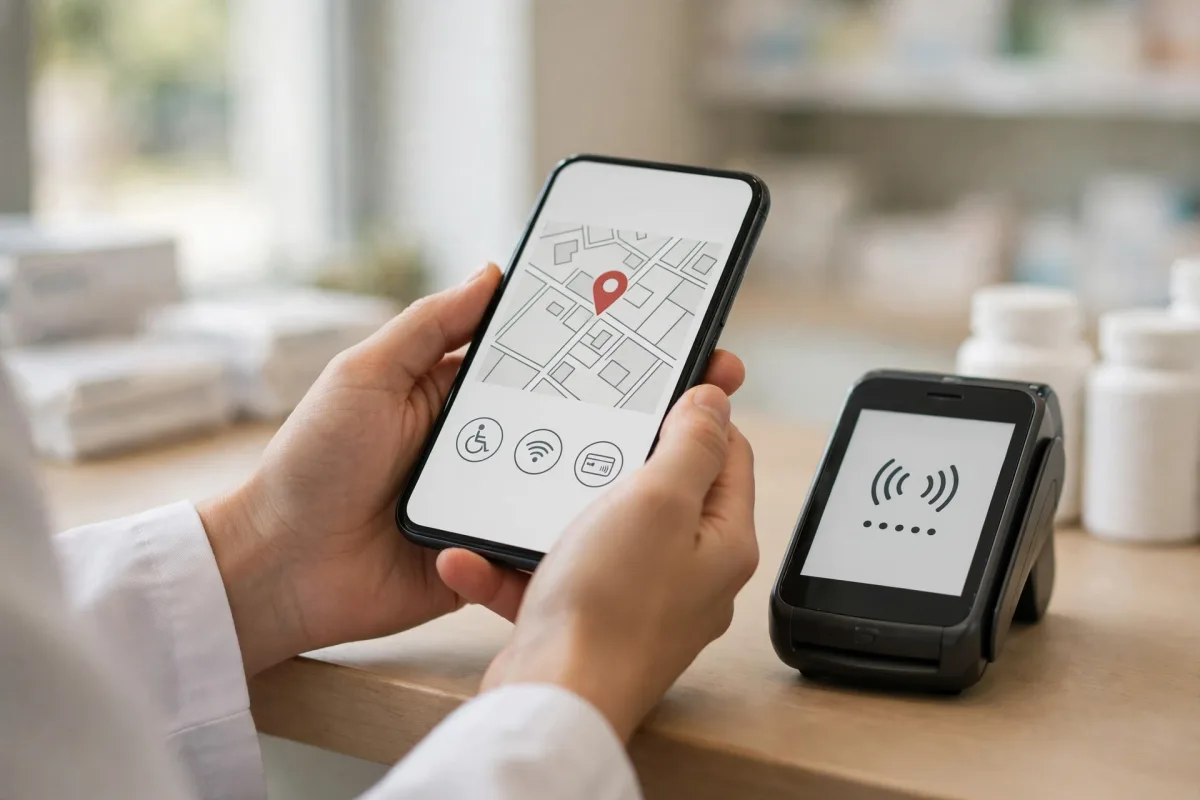
- Accessibility: Wheelchair-accessible entrance, restroom, seating, parking and elevator; hearing support such as assistive hearing devices and a hearing loop.
- Amenities: For example, Wi-Fi.
- Payments: The payment methods you accept; for example, that only cash is accepted. Which Google business payment options you see depends on country and category.
- Recycling: Whether you accept waste such as batteries, electronics or glass bottles; options are listed by category.
- Business identity: Statements about the business owner and small-business information, offered in some countries.
The ones you can add
As the profile's owner or manager, you can edit some attributes directly. According to Google's Manage your business attributes page, the steps to add attributes are, in short:
- Go to your Business Profile.
- From the "Edit profile" menu, open the "More" section.
- Click the edit icon next to the group you want to change.
- Choose "Yes" or "No" for each attribute.
- Click "Save" to keep the change.
What to watch when filling them in
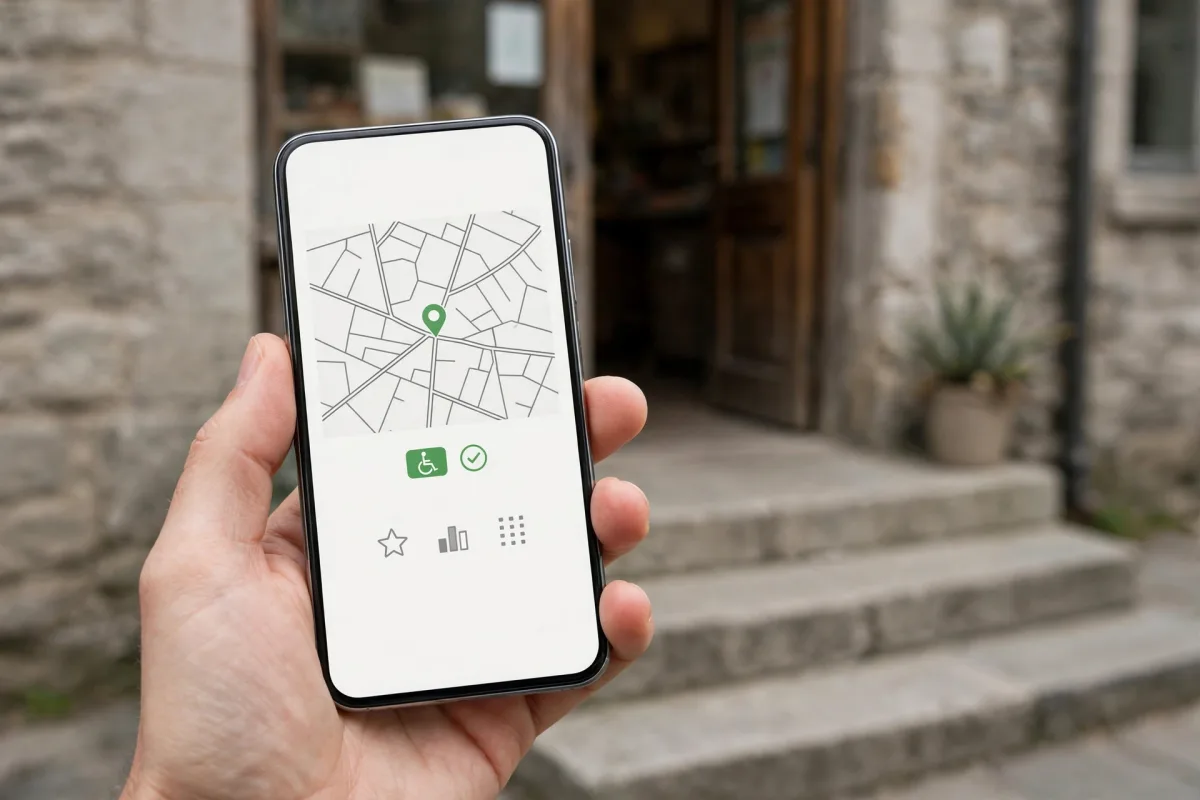
- Mark only the actual situation. If there are steps at the entrance and no ramp, don't say "Yes" to a wheelchair-accessible entrance. Google's help page also describes the conditions accessibility attributes are expected to meet; read it before marking.
- "No" is information too. Clearly stating that an amenity isn't available saves customers a wasted trip.
- Update when things change. If you've started accepting cards, added an elevator after a renovation or dropped an amenity, correct the attributes the same day.
- Check each location individually. Each location's accessibility and amenities may differ. Google also notes that businesses with 10 or more locations can upload attributes in bulk.
The ones that come from user contributions
You don't add every attribute on your profile yourself. According to Google's help page, some attributes may be filled in from information provided by people who visited your business. Google Maps may ask users who visited a place short questions about it; their answers may be reflected in the information on the profile. Google also notes that it may automatically mark a business as a small business based on the information it has.
This has two consequences:
- An attribute may appear on your profile even if you didn't mark it. For example, if visitors said the entrance is accessible, this may show on the profile.
- A wrong contribution may appear too. If an attribute based on visitor input doesn't reflect reality, give the correct information clearly in the fields you can edit, and suggest an edit to Google when needed.

Attributes that vary by category
A cafe's attribute list isn't the same as an auto repair shop's or a doctor's office's. According to Google's help page, some attributes can be edited only in certain countries, locations or business categories. For example, food businesses see options about service style and seating, while other categories may not see them at all.
So:
- If the attribute you want isn't in the list, it may not be offered for your category or country. You can't create an attribute that isn't in the list yourself.
- Don't change categories to gain attributes. Choosing a category that doesn't describe your business breaks Google's rules and puts your profile at risk. Choose your category only to describe your business accurately; details are on Google's Manage your business category page.
- The right additional category can change the list. When you add the correct additional category for a service you actually offer, attributes tied to that category may also appear in your list.
The risk of adding an inaccurate attribute
Having many attributes on the profile may be tempting; but an inaccurate attribute isn't a shortcut to gain, it's a long-term loss.
- Customer trust: A customer who comes because the profile says card payment and finds cash only may describe that experience in a review. Wrong accessibility information means someone truly can't get inside.
- Google's rules: Google wants businesses represented with information consistent with how they are in the real world. Misleading information may be corrected, and rule violations can lead to profile restrictions.
- Business identity statements: Google clearly states that when you add this attribute, you are telling everyone your business is owned by someone with that identity. A statement that doesn't reflect reality isn't just a rule problem; it misleads your customers.
If you want to see your profile's gaps one by one, BadePlus's AI-powered map optimization feature lists what's missing on the profile, prepares attributes supported by evidence in your reviews, and asks you about information it can't know instead of guessing.
Frequently asked questions
Do attributes affect ranking?
In its tips on local ranking, Google lists attributes among the information that should be kept current and complete. Complete information can help your profile match the right searches; however, Google decides rankings, and the effect of a single attribute can't be measured.
A wrong attribute appears on my profile. How do I fix it?
If the attribute is in a group you can edit, mark the correct option under "Edit profile." If you can't edit it, support the correct information with photos and your description, and suggest an edit to Google.
How often should I check attributes?
Right away when something changes at your business; otherwise, a look every few months is enough for most businesses.
Summary
- Google Business Profile attributes help customers decide with short details such as accessibility, amenities and payments.
- The attributes you can edit are in the "More" section of "Edit profile"; changes go live after Google's review.
- Some attributes come from visitor contributions; make the real situation visible with photos and accurate information.
- The attribute list varies by category and country; don't change categories to gain attributes.
- Mark only what's accurate; a wrong attribute puts customer trust and your profile at risk.