

Google Business Profile Photos: Which Photos, and What Sizes?
Google Business Profile photos: the right types, Google's size and file rules, choosing a cover and logo, how often to refresh, and photos that get rejected.
By BadePlus
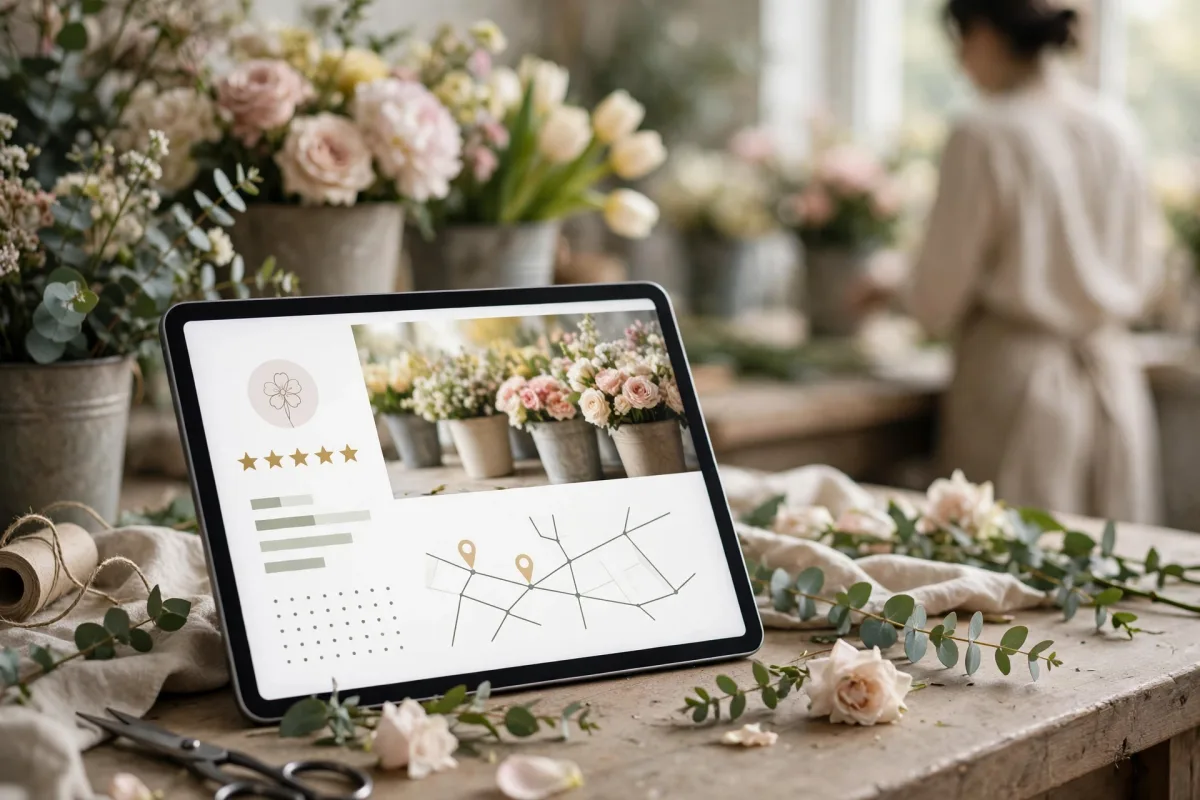
Images are AI-generated.
People who find a business on Google Maps often look at the photos first: Where is the door? What is it like inside? What do the products look like? Google Business Profile photos answer these questions before any text does; a few carefully chosen photos say more than a long description. Google itself lists adding photos as a way to make a profile more appealing to customers and the business easier to recognize.
This article covers, step by step, which photo types work, the size and file rules on Google's help page, choosing a cover and logo, how often to refresh the gallery, and which photos cause problems.
Which photo types do you need?
Google recommends adding photos of your storefront, products, and services to your profile, and notes that exterior photos in particular help visiting customers recognize your business. In practice, a balanced gallery includes:
- Exterior: A few photos showing your door and entrance at different times of day and from different angles. A customer on your street should find you without calling.
- Interior: Waiting area, seating, counter, or work area. Choose naturally lit shots where the space looks clean and tidy.
- Products and services: Your most popular products, before-and-after shots of your work, dishes you prepare. A photo means more when it supports the service list in your profile.
- Team at work: Shots of your staff doing their jobs build trust. Get permission from everyone whose face is visible; Google's content rules don't allow sharing a person's face without their consent.
- Short videos: Short videos showing the inside of your place or how a job is done can also go in the gallery.

Size and file rules
Google's Manage your Business Profile photos and videos page lists these standards for photos:
- Format: JPG or PNG.
- File size: Between 10 KB and 5 MB.
- Recommended resolution: 720 pixels wide, 720 pixels tall.
- Minimum resolution: 250 pixels wide, 250 pixels tall.
- Quality: In focus, well lit, without significant alterations or excessive filters. In Google's words, the image should represent reality.
For Google business photo size, these limits are a framework; 720 pixels is a recommendation, not a cap on larger photos. Today's phone photos are usually far above this size; the real problem is often file size. Before uploading a photo over 5 MB, you can shrink it with the editing tool on your phone or computer and save it as a JPG. Don't crop out anything important; photos may be shown at different ratios in the gallery and search results, so keeping the main subject near the center helps.
If an uploaded photo doesn't show in the gallery, first check whether it's a copy of an earlier upload. Google notes that adding the same photo again may not be accepted.
Cover and logo
Your profile has two special photo slots, and each does a different job.
Logo
Your logo helps customers recognize your business on Google. Use a square file on a plain background that is still legible at a small size. Google expects the profile's core information to be complete before it features the logo: name, location with a full address, category, phone number, and hours. If your logo isn't showing, check these fields first.
Cover photo
Think of your Google business cover photo as the shot at the top of the profile that best represents your business. For most businesses, a well-lit exterior or the most characteristic interior photo is a good choice. Don't use collages, promotional information, or heavy text on the cover; show a single scene simply.
An important detail: Google may make the final call on which photo is shown first. Google's help page states plainly that in some cases another image may appear first instead of your cover photo, and that if your chosen cover is low quality, a photo added by users may be preferred. So choosing a cover and leaving it there isn't enough; a high-quality gallery overall helps the image Google picks reflect your business accurately.
How often should you add photos?
Google doesn't give a number for how often to add photos. But its help page notes that the newest media is shown first in the gallery. If your gallery is full of photos taken years ago, customers can't see you as you are today.
A realistic routine:
- A small update once a month: Add a few photos of a new product, a seasonal change, or a recently finished job. A few photos regularly, rather than rare bulk uploads, keep the gallery current.
- Right away when something changes: If your sign, facade, interior layout, or product range has changed, remove the old photos and add new ones. The place a customer sees in the photos should be the place they find at the door.
- Seasons and periods: Businesses with a garden, a terrace, or seasonal products can show these changes with photos.
- Two jobs from one shoot: On the same shoot day, take photos for both the gallery and your posts; that way your gallery and your post calendar are fed together.
You also need to be realistic about how photos affect ranking. Google lists adding photos and videos among its tips for local visibility, but ranking weighs factors such as relevance, distance, and prominence together, and Google makes the decision. There is no measure of how much photos alone contribute. For the other factors, see our guide to moving up on Google Maps.
Photos that break the rules
Google states that photos and videos are subject to separate criteria in addition to its prohibited and restricted content policies; the details are in the photo, video, and post content policy. A photo that isn't approved doesn't appear on the profile. Common problems include:
- Images that don't reflect reality: Stock photos, shots taken from another business, or an AI-generated image placed in the gallery as if it were a real photo of your business. The gallery should show the place customers will see when they arrive.
- Over-editing: Heavy filters and retouching that change colors, proportions, or the look of the place.
- Off-topic content: Scenery unrelated to your business, images taken from the internet, joke posts.
- People without permission: Faces of customers or employees shared without their consent.
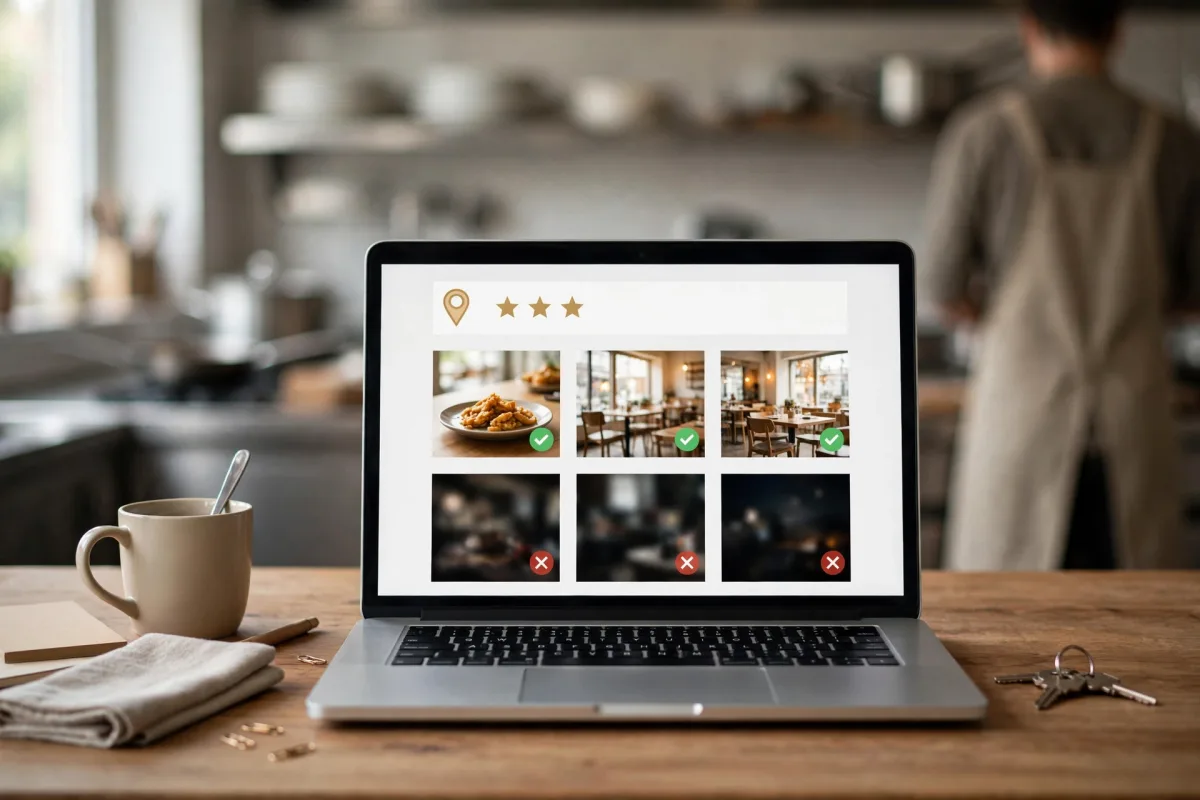
- Low quality: Blurry, dark, tilted, or very small photos. Even if they can technically be uploaded, they make your business look worse than it is.
- Repeats of the same shot: Uploading the same photo again and again adds nothing to the gallery.
If you struggle to find images for posts, keep the distinction clear: the profile gallery is the place for real photos, while representative images can be used in posts as long as they aren't presented as real photos. BadePlus works with the same distinction: in posts it first uses the real photos you upload, AI images for Google business posts come in only for posts, and no AI photos are added to your profile gallery by default.
Frequently asked questions
Do photos appear before the profile is verified?
No. Google states that photos and videos are shown only after the profile is verified. Photos you upload stay pending until verification is complete.
Why isn't my cover photo shown at the top of my profile?
Google may show the image it thinks best represents the business as the first image. Refreshing your cover with a high-quality shot and keeping the gallery current are the main things you can do.
Is a photo taken with a phone good enough?
Usually, yes. Google's minimum sizes are far below what today's phone cameras produce. What really matters is light, sharpness, and a photo that reflects reality.
Summary
- For Google Business Profile photos, use JPG or PNG files between 10 KB and 5 MB and at least 250 × 250 pixels; 720 × 720 pixels is the recommended size.
- Build a balanced gallery of exterior, interior, product and service, and at-work photos; get permission from everyone whose face is visible.
- Choose your logo and cover photo carefully, but remember that Google may decide which image is shown first.
- Update the gallery a little at a time, but regularly; the newest media is shown first.
- Don't put stock photos, over-edited photos, or AI images presented as real photos in the gallery.